ControlRoom · 2 MIN READ
Build and review an automation
Define a supported event, the conditions that matter and the actions that follow.
Guide reviewed 14 September 2026 · Controls depend on your app version and access.
Before you begin
Use the actions and trigger vocabulary available to your connected workspace. A visible authoring option is not proof that every deployment can execute it.
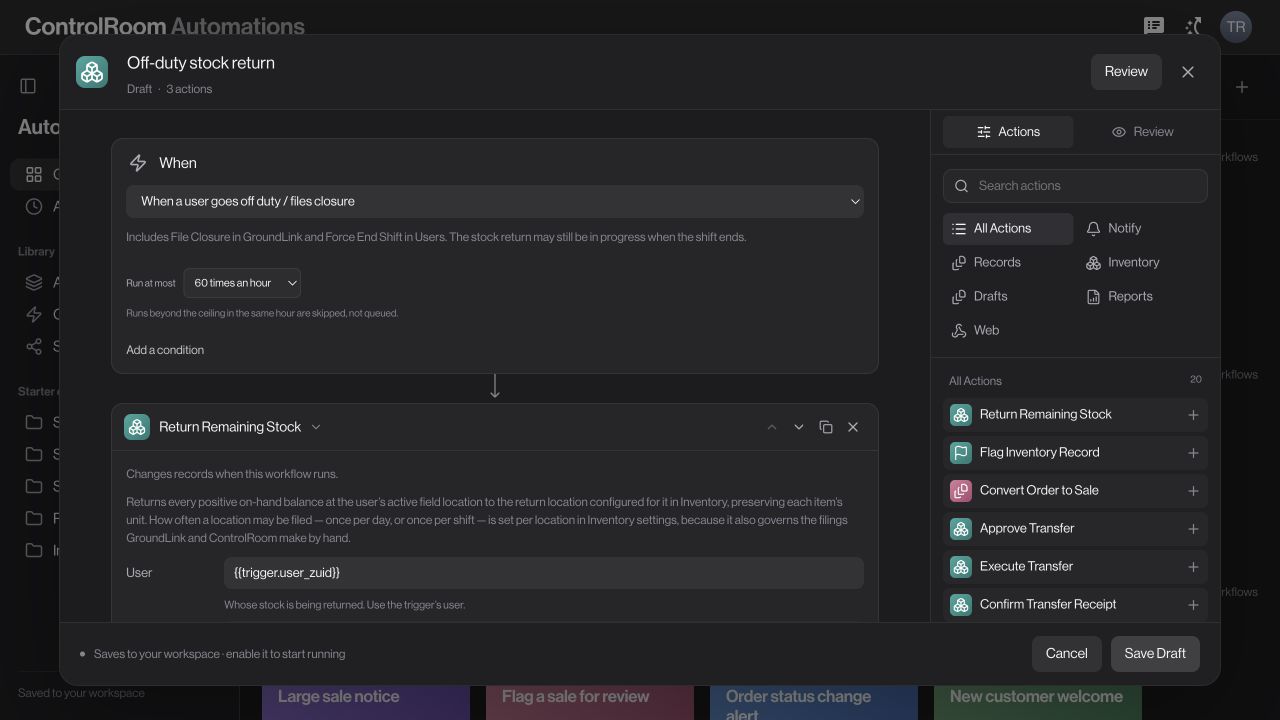
01Create or open a workflow
Open Automations and choose the new-workflow plus control or an existing flow. Give it a name that describes the business outcome.
02Set When and conditions
Choose the supported trigger. Add conditions that restrict the workflow to the intended event data. Confirm whether it runs manually or from an event; saving does not itself run it.
03Add actions in order
Choose actions from the library. Provide required fields and use trigger or earlier-action values where offered. Later actions cannot depend on an output that does not yet exist.
04Use Review before saving
Resolve missing parameters and unsupported combinations. Distinguish a draft action from one that changes records. Confirm any run-frequency limit and what happens when the limit is reached.
05Save, enable and observe separately
Save the draft, then enable only after reviewing the consequences and workspace support. Inspect run history and individual outcomes after a representative event. Do not treat an enabled label as confirmation that an action succeeded.
Check the result
The workflow has a clear trigger, valid conditions, known recipients or destinations and a reviewed execution result.
If something does not look right
When a step fails, inspect the recorded error and whether earlier steps already changed data. Do not assume all actions were rolled back or that replaying the event is safe.
Look up an error