GroundLink · 1 MIN READ
Kick off and file closure
Start and end the work-duty session while checking associated work separately.
Guide reviewed 14 September 2026 · Controls depend on your app version and access.
Before you begin
Confirm the correct user and company. Your organisation may configure a permitted kickoff location and tracking policy.
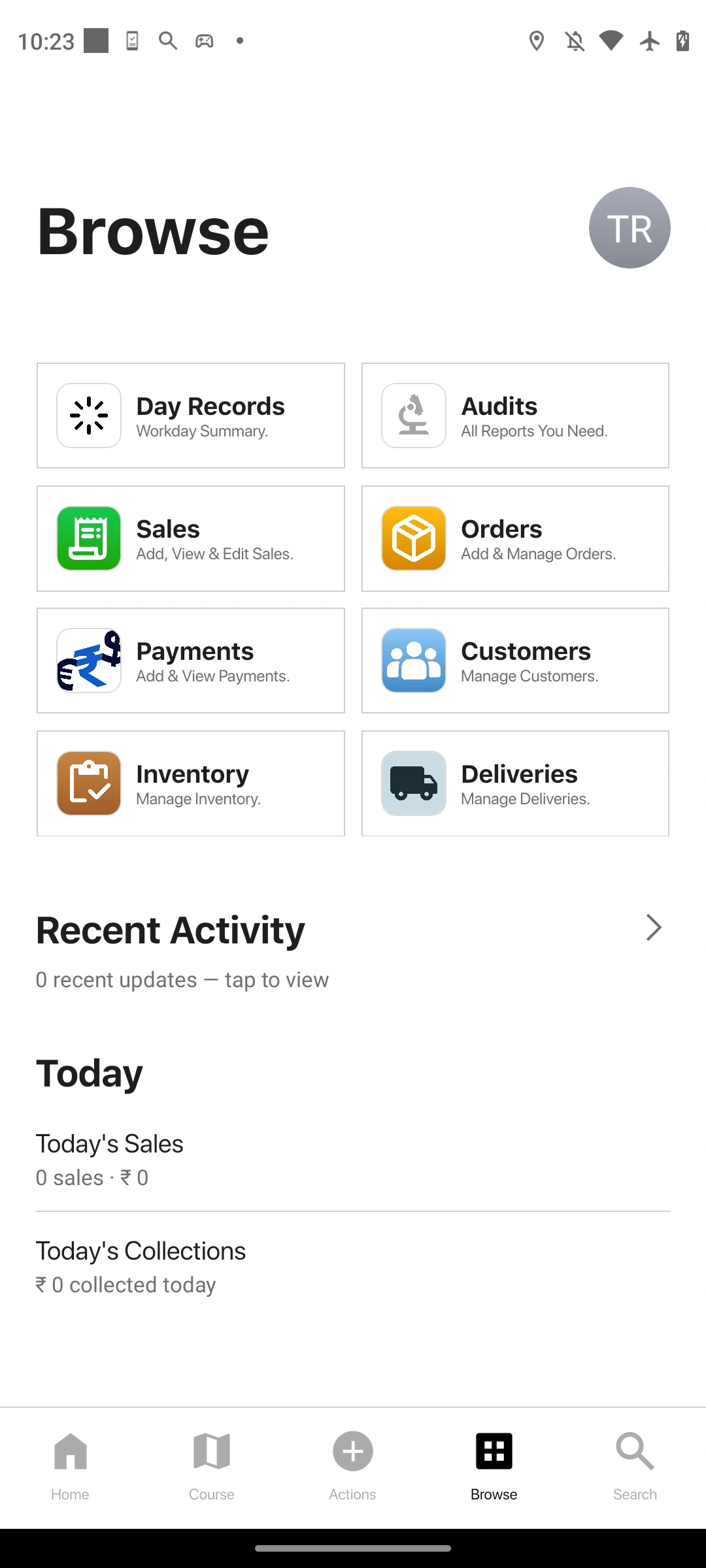
01Start the shift
Open Actions and choose Kick Off. Wait for the Kicked off confirmation. If kickoff is location-restricted, use it from the authorised place.
02Handle location prompts
If tracking is enabled, review the device-permission and Trail Detection prompts. Duty start and tracking are separate outcomes; a location-permission problem does not prove that duty start failed.
03Record the day’s work
Use the available sales, order, payment and visit flows. Confirm each save rather than relying only on a Home total.
04End the session deliberately
Return to Actions and hold the File Closure control as instructed. Wait for Closure filed. Avoid repeating it while a request is in progress.
05Check the handover
Review any remaining stock return, payment reconciliation or closure workflow required by your organisation. Filing closure does not guarantee all downstream actions completed.
Check the result
The displayed duty state matches the intended session, and outstanding handover work is known.
If something does not look right
For SHIFT_ALREADY_OPEN or a similar state conflict, refresh the current duty state before trying again. Do not start another shift simply because a toast was missed.
Look up an error