ControlRoom · 1 MIN READ
Arrange your home workspace
Put the apps and business figures you check first where you can see them.
Guide reviewed 14 September 2026 · Controls depend on your app version and access.
Before you begin
Home widgets are summaries of available records. A total is only meaningful with its period, company and scope.
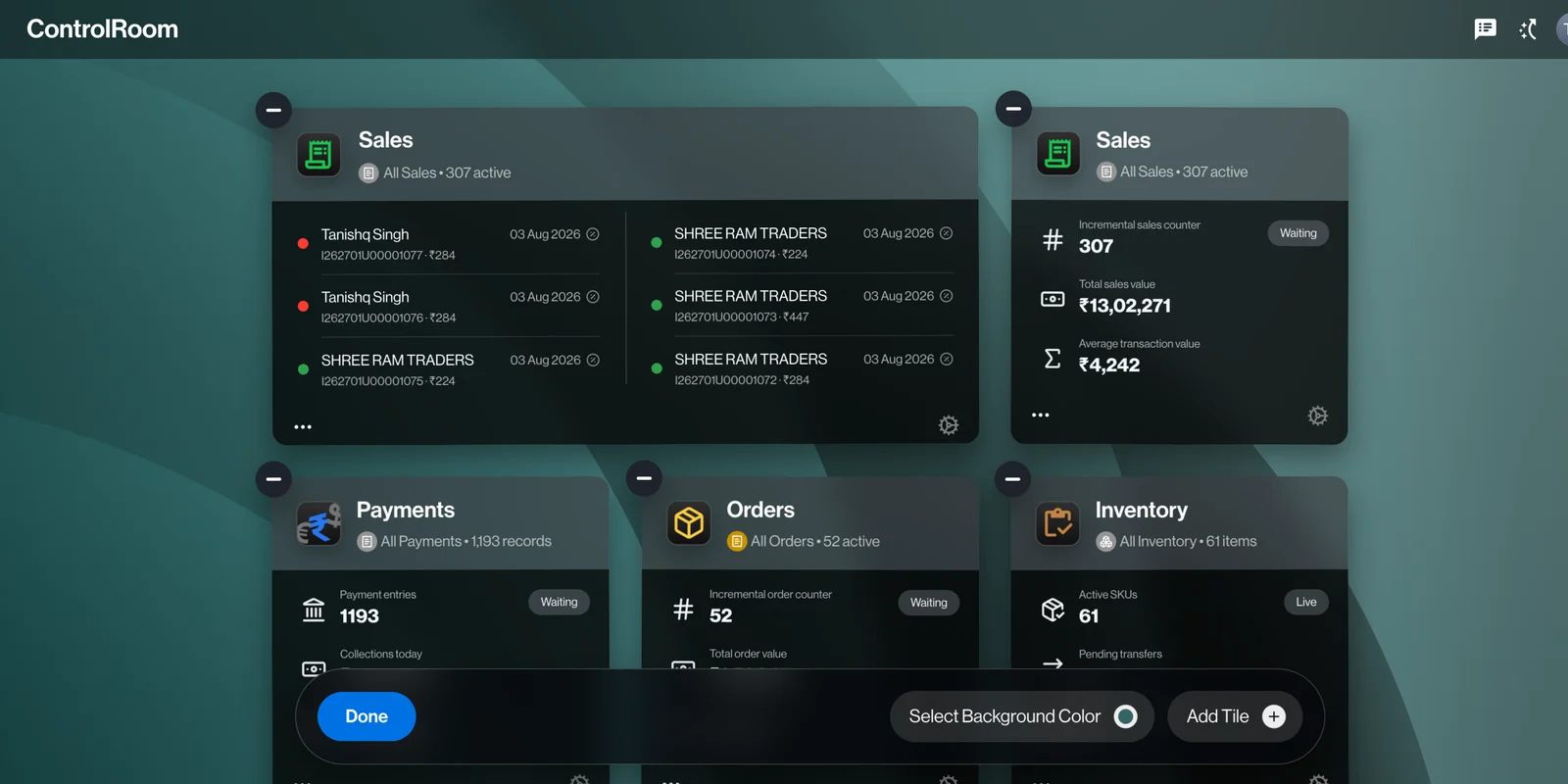
01Read the widget context
Open ControlRoom Home. Look at the name, period and record count shown by each widget before comparing it with a report or a full app.
02Arrange your tiles
Use the home layout editing controls to arrange the available tiles. Keep frequently used summaries near the start and remove visual clutter that does not help your working day.
03Choose a background
Use the workspace appearance controls to choose an available background. This changes the presentation, not the underlying business records or permissions.
04Open the underlying work
Use a tile to reach its app when you need to inspect individual records. Suggestions are shortcuts into work; review the actual record before acting.
Check the result
Your first screen shows the information you need, and the underlying app explains any figure you plan to act on.
If something does not look right
A widget can lag a recent change or reflect a narrower view. Refresh and compare the same date range and company before reporting a mismatch.
Look up an error