ControlRoom · 1 MIN READ
Understand inventory, locations and units
Read stock in the context of the item, location and unit it belongs to.
Guide reviewed 14 September 2026 · Controls depend on your app version and access.
Before you begin
You need Inventory access. A product quantity without its location and unit can be misleading.
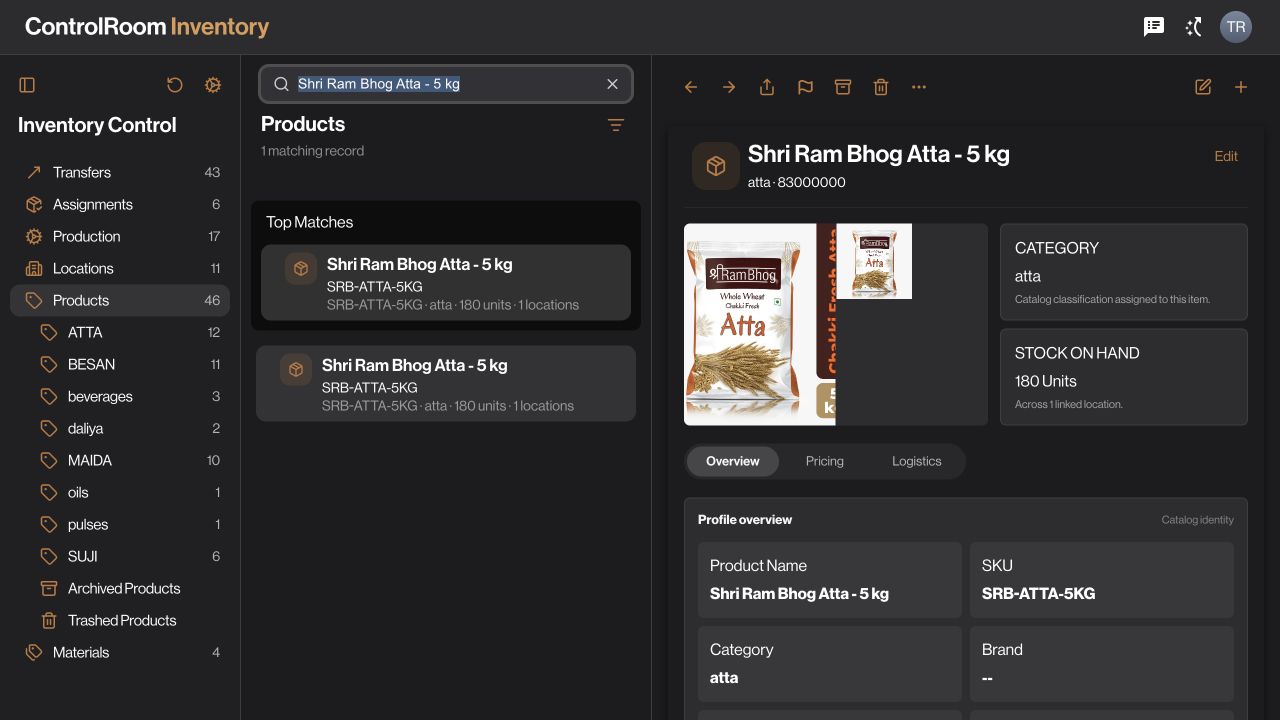
01Find the item or location
Choose the relevant Inventory view and open the record. Check SKU, unit and material centre or location.
02Distinguish balances from movements
A balance describes stock at a point in time. A movement explains why a quantity changed. Inspect related movements when investigating a difference.
03Review available workflow types
Use a Transfer Draft to propose a movement, an Assignment Draft for supported assignment work, or a Production Draft where enabled. Drafting is separate from approval and execution.
04Check associations
Where documents, inventory or location associations are available, connect the correct records. Do not create a new item just because an existing item’s name differs slightly.
Check the result
You can identify the item, unit, source location and the event behind any quantity change.
If something does not look right
Negative, insufficient or inconsistent quantities need reconciliation. Do not switch units or destinations to make a validation error pass.
Look up an error