GroundLink · 1 MIN READ
Browse customers, inventory and day records
Use focused screens to answer the question in front of you.
Guide reviewed 14 September 2026 · Controls depend on your app version and access.
Before you begin
Open Browse and use only the destinations enabled for your role.
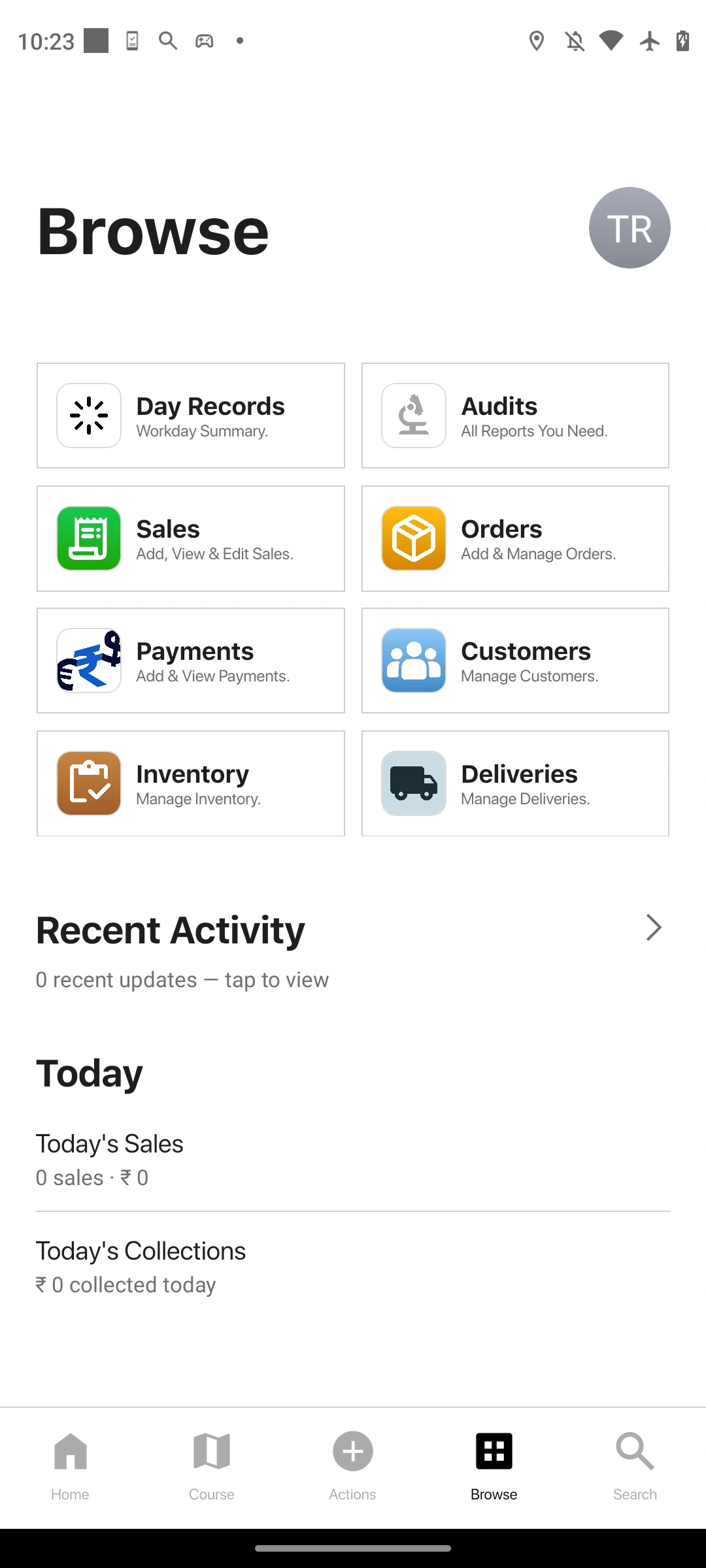
01Choose the record type
Open Customers, Inventory, Sales, Orders, Payments or another available app. Keep the business question specific.
02Open the individual record
Review identifiers and detail rather than relying only on a summary amount or display name.
03Review the day’s context
Use available day records or recent activity to find work from the relevant period. Check whether the view includes just your work or a broader scope.
04Pass the record forward
Give the office the record identifier, date and question that needs action. Do not send unrelated customer information just to identify a record.
Check the result
The person taking over can locate the same record and understand what needs attention.
If something does not look right
A record may be outside the current date, category or permission scope. Check those first when it is missing.
Look up an error