ControlRoom · 2 MIN READ
Review orders and their next step
Understand the customer’s request before assigning, fulfilling or converting it.
Guide reviewed 14 September 2026 · Controls depend on your app version and access.
Before you begin
You need Orders access. Any change depends on the order state and your permissions.
01Find the order
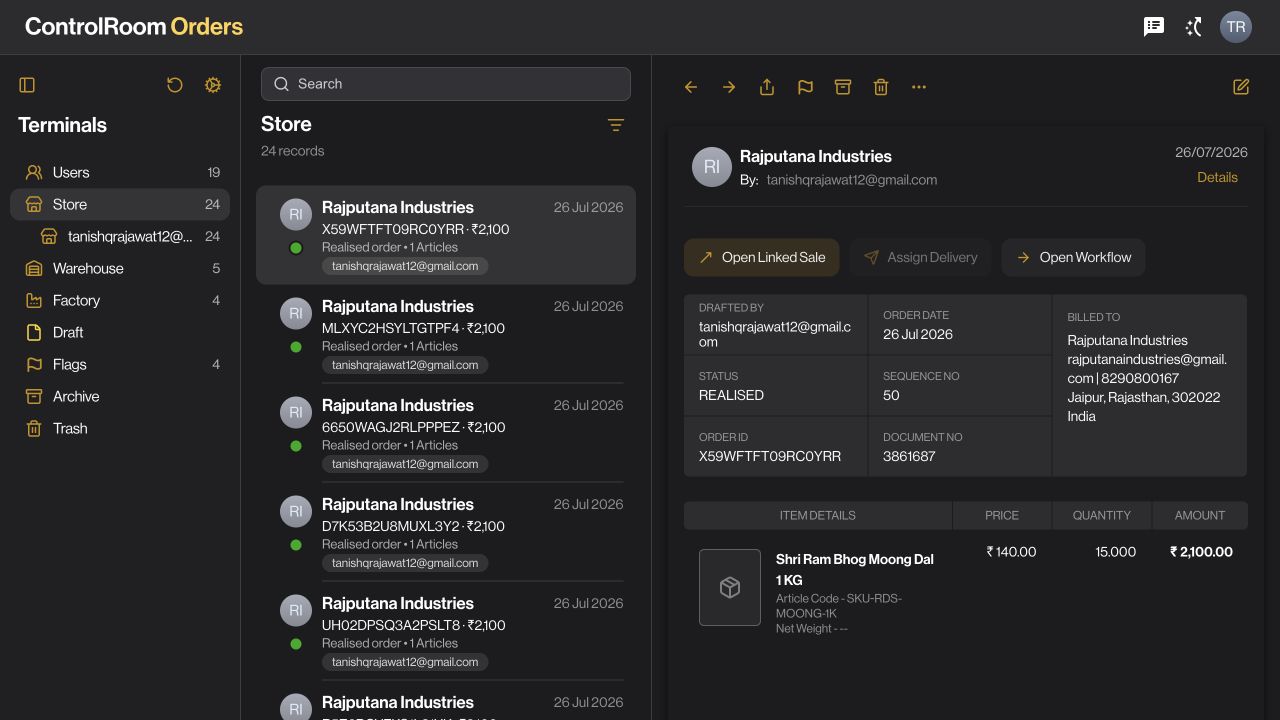
Choose the appropriate Orders category, search by the available identifier and select the row. Confirm the customer and order number in the detail pane.
02Review the request
Check products, quantities, amount, current status and any notes or related records. A displayed order total is not proof of payment.
03Resolve the allocation or assignment
Where an assignment or allocation decision is required, complete that decision through the available action. Do not assume stock is ready merely because the order exists.
04Use the permitted next action
If conversion to a sale is available, review its confirmation and requirements. Stock and customer-credit rules can block conversion. An automation is not a bypass for those checks.
05Verify the result
Open the updated order and any resulting sale. Record identifiers and states should reflect what actually happened; do not submit again just because a notification was slow.
Check the result
The order has a clear current state and, where relevant, a linked sale or fulfilment record.
If something does not look right
If conversion is refused, inspect the allocation, customer credit and stock conditions. If the result is uncertain, refresh and look for the resulting record before trying again.
Look up an error