ControlRoom · 1 MIN READ
Find records and use shortcuts
Use the search surface appropriate to the question you are asking.
Guide reviewed 14 September 2026 · Controls depend on your app version and access.
Before you begin
Know whether you are searching across the workspace, within an app, or only through records already loaded.
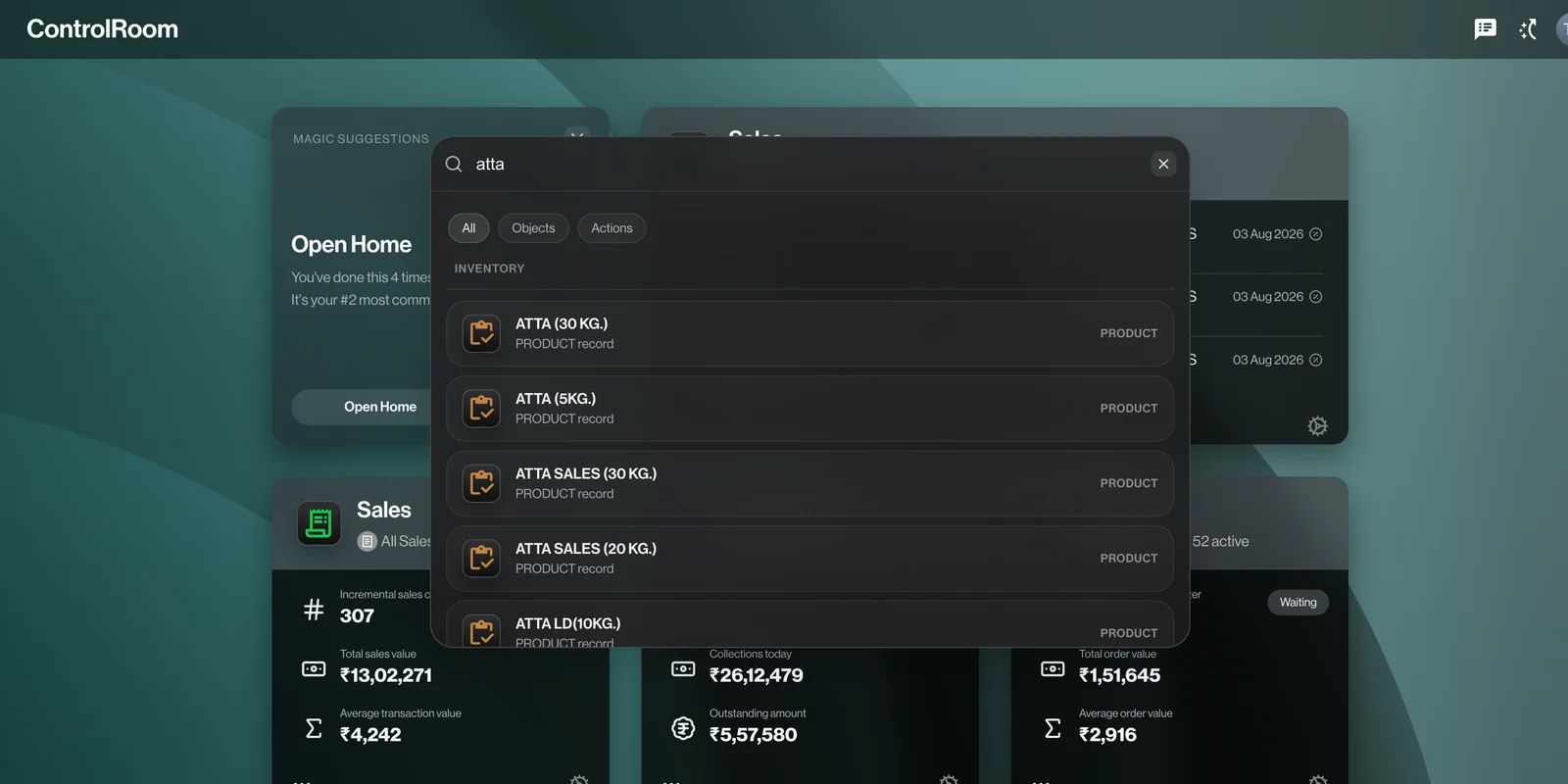
01Start with the closest identifier
Use a record number, customer name or product identifier when available. It is more precise than a broad descriptive phrase.
02Use workspace search to reach the work
The workspace search interface helps locate available destinations or results. Open the result and confirm the company and record identity.
03Use app search to narrow a list
Inside a record app, select the relevant category before searching. Clear both text and filters when a record you expect is absent.
04Check loading boundaries
Purchases explicitly searches loaded records. Load additional pages when available before concluding that a purchase is absent.
Check the result
The opened result has the intended identifier, not just a similar display name.
If something does not look right
If access changes, a previously visible result can become unavailable. Do not work around that restriction using another person’s account.
Look up an error