ControlRoom · 1 MIN READ
Work with the three panes
Keep your category, record list and selected details together while you review work.
Guide reviewed 14 September 2026 · Controls depend on your app version and access.
Before you begin
Open a record-based app such as Orders. Narrow screens may collapse a pane; the information remains part of the same workflow.
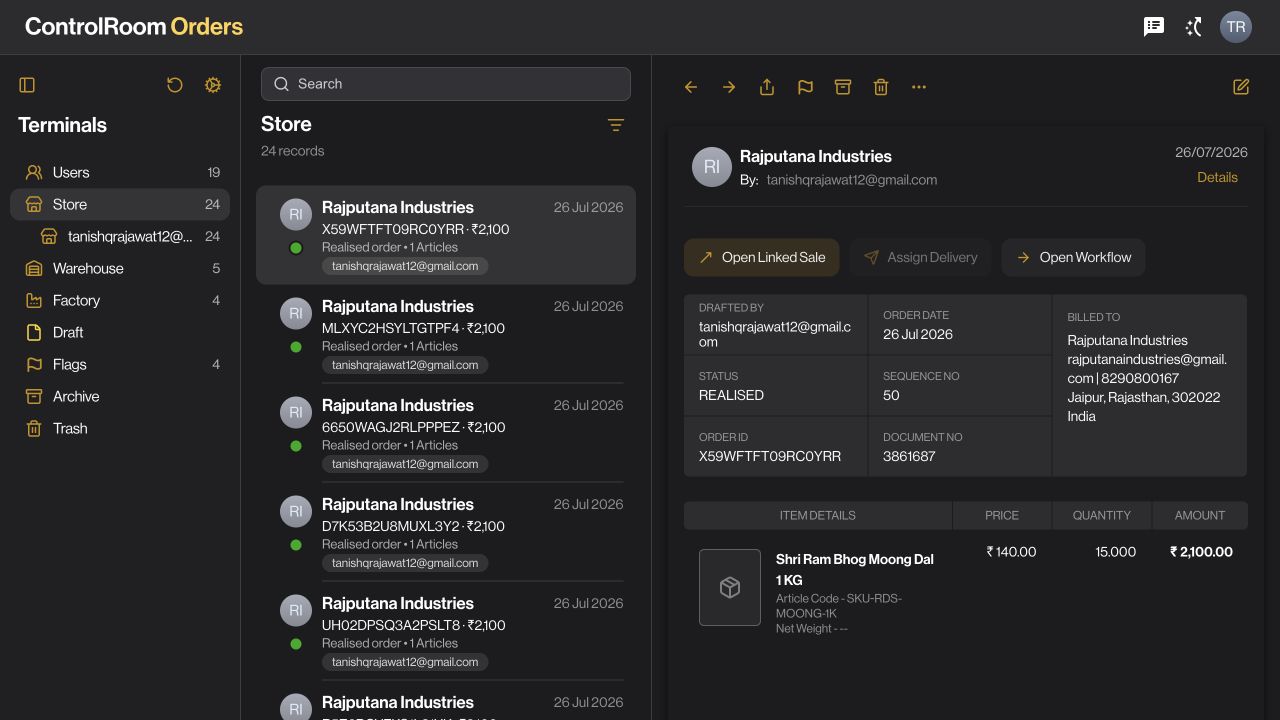
01Navigate on the left
Choose the category or saved view that describes the records you need. Categories can represent different states, so note which one is selected before comparing totals.
02Find in the middle
Search or scan the current list. Select a row to inspect it. If the list loads in pages, an item not yet loaded may not be included in a local search.
03Review on the right
Read the selected record’s identity, customer, amounts, status and related information. Use the actions available for that record rather than treating the list row as the complete record.
04Move without losing context
Select the next record from the list. Keep the same category while reviewing similar cases, or change the category deliberately when the question changes.
Check the result
You know both the selected record and the category it belongs to; you can move between records without starting over.
If something does not look right
If no details appear, select a row. If the list is empty, clear search and check filters, company and permissions before assuming the data has disappeared.
Look up an error